Last updated on December 25th, 2025 at 05:08 pm
If you’ve ever wondered “What’s in his stack?” — I’ve shared it all in one place.
👉 See my best picks
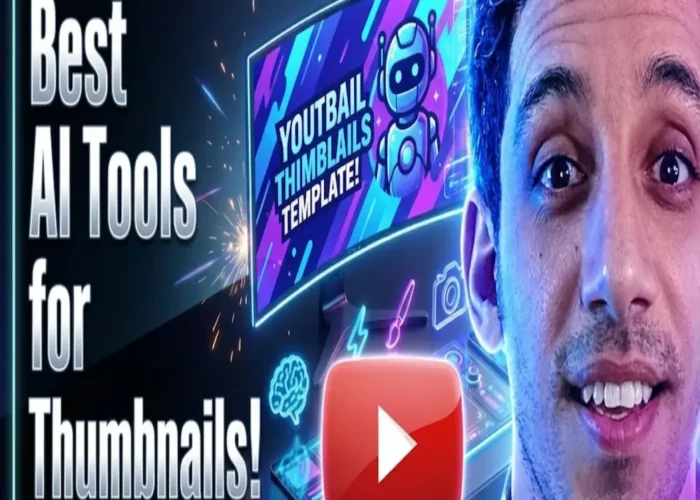
Yes, you can create professional, high-click-through-rate YouTube thumbnails using AI—even with no design experience—and the best part is that many powerful tools are free or low-cost. The right combination of AI image generators, preview testers, text optimizers, and inspiration sources streamlines the entire process. Below is a complete, up-to-date guide with direct access to each recommended tool, so you can go from idea to publish-ready thumbnail in minutes.
Why Do So Many Creators Waste Time on Ineffective Thumbnails?
Most creators either reuse random video screenshots or spend hours in complex design software, not realizing that modern AI tools can automate 80% of the work. A common myth is that “only Photoshop pros make great thumbnails,” but today’s AI platforms generate on-brand, emotionally engaging visuals from simple text prompts. The real issue isn’t skill—it’s knowing which tools actually work and how to use them together strategically. That’s where this guide comes in: every tool listed is tested, accessible, and purpose-built for YouTube success.
Which AI Tools Can Generate Thumbnails from a Text Prompt?
You don’t need design skills—just a clear idea. These AI generators turn prompts into ready-to-use thumbnails:
- Gemini by Google: Describe your video’s vibe (e.g., “dramatic lighting, shocked face, bold red text”), and Gemini creates multiple high-quality options using advanced image models like Nano Banana.
- Playground.com: Offers customizable templates and fine-tuned control over style, lighting, and composition. Great for refining AI outputs with precision.
- AI Google – Thumbnail Genius App: A no-frills tool where you enter your video title and instantly get clickable thumbnail designs. Ideal for rapid iteration.
Just type what you envision, and these tools do the heavy lifting—fast.
How Can You Test If Your Thumbnail Stands Out Before Publishing?
Never guess—test it in real YouTube conditions:
- TestMyThumbnails.com: Upload your image and see how it appears on desktop, mobile, and tablet feeds. It even simulates A/B testing to compare versions.
- ThumbnailPreview: Shows your thumbnail and title live alongside real competitor videos, so you can instantly judge visibility and emotional impact.
These tools reveal whether your design disappears in the feed or demands attention—critical for maximizing CTR.
Where Can You Find Real Thumbnail Inspiration Without Copying?
- Pinterest: Search your niche (e.g., “fitness thumbnails” or “tech review YouTube”) to discover trending visual patterns. Use these as mood references—not templates—and recreate your own version with AI.
- YouTube Thumbnail Downloader: Paste any video URL to download its HD thumbnail. Analyze top-performing channels in your space to reverse-engineer what works—colors, expressions, text placement.
Inspiration fuels originality when used ethically and strategically.
How Do You Capture the Perfect Frame from Your Own Video?
- Screenshot YouTube Chrome Extension: Lets you grab high-resolution screenshots at any timestamp directly from the YouTube player. Perfect for pulling authentic, high-energy moments that feel genuine—not staged.
Pair this frame with AI enhancements or text overlays for a hybrid thumbnail that’s both real and refined.
What Tools Help Finalize and Optimize Your Thumbnail?
Even the best design needs technical polish:
- Canva: Drag-and-drop editor with YouTube-specific templates (1280×720 px), fonts, and branding tools. Ideal for adding text, logos, or contrast boosts.
- Affinity Designer: A powerful, one-time-purchase alternative to Photoshop. Best for creators who want pixel-level control without subscription fees.
- Squoosh.app: Compress and resize your thumbnail without quality loss. Ensures fast loading and crisp display across all devices.
These tools handle the final 10% that turns a good thumbnail into a flawless one.
Can AI Help Write Better Thumbnail Text?
Absolutely. Use ChatGPT to generate short, benefit-driven overlay text. Prompt it with:
“Give me 5 clickable, under-5-word phrases for a video on affordable high-protein vegetarian meals.”
You’ll get lines like “$2 Meals. 30g Protein.” or “Eat Big. Spend Less.”—clear, value-packed, and emotionally resonant. Then overlay that text using Canva or AI generators.
Real-World Workflow: From Prompt to Published Thumbnail
You’re launching a video: “Budget Vegetarian Meals for Muscle Cutting.”
- Use Gemini to generate 3 visuals from a prompt like “colorful lentil bowls, bold white text ‘High Protein. Low Cost.’”
- Refine one in Canva, adjusting font size for mobile.
- Test it on ThumbnailPreview—see it stands out against competitors.
- Compress with Squoosh.app, then upload.
Result: higher CTR, less time spent, zero design stress.
Best Practices for Using These Tools Together
- Start with intent: What emotion or benefit should the thumbnail convey?
- Generate 3–5 AI options, then eliminate weak ones using preview tools.
- Never skip mobile testing—60%+ of views come from phones.
- Maintain visual consistency across videos (colors, fonts, face placement) to build brand recognition.
- Always pair strong visuals with clear, benefit-driven text—use ChatGPT if stuck.
This isn’t about using every tool—it’s about building a repeatable, efficient system.
Final Takeaway
You don’t need to be a designer to create high-performing YouTube thumbnails. With direct access to AI generators like Gemini and Playground.com, preview testers like TestMyThumbnails.com, and polish tools like Canva and Squoosh.app, any creator can produce professional, clickable thumbnails in minutes. The key is combining automation with strategic testing—and using the right tool for each step of the process.

Hey! 👋 If this post saved you time, stress, or another “I give up” moment…
Do me a tiny favor? Share it with one friend who’s also grinding to make extra cash — but hates “guru” nonsense.
I don’t do fake scarcity, pop-ups, or “DM me for the secret.” Just real, messy, human advice.
When you share, you keep this blog alive… and help me afford more coffee (and fewer 3 a.m. panic sessions).
— Remon STS 💙

Other Articles
9 Lesser-Known Websites to Get Powerful Marketing & Copywriting Ideas
Find Perfect NanoBanana Prompts :The Hidden Places Online Creators Use
